
Founder of Voice Mate
Simplify Real Estate Client Communication With Voice Mate
In real estate, availability is key—but it’s impossible to answer every call. Voice Mate transcribes voicemails instantly, identifies potential buyers or sellers, and ensures you can follow up quickly before the competition does.
With AI voicemail, you’ll never miss out on a key opportunity. Voice Mate transcribes and categorizes incoming messages, so you know immediately if it’s a new listing, a buyer inquiry, or a vendor. Stay responsive while you’re in showings, meetings, or on the move.

In this guide, we’ll walk you through setting up AI voicemail for real estate agents. You'll stay ahead of competitors, strengthen client relationships, and close more deals—all while letting AI work behind the scenes for you.
Getting Started
Setup is easy: follow the steps below. You need the Voice Mate app on your phone.
Get the app
-
1. Upload Your Personalised Greeting
Open Voice Mate, go to Settings and choose Greeting. Write a custom voicemail greeting. This is what your AI will say when it picks up the phone for you. You can also give the AI instructions for instance that it should record the property someone is calling about.

-
2. Set Call Forwarding
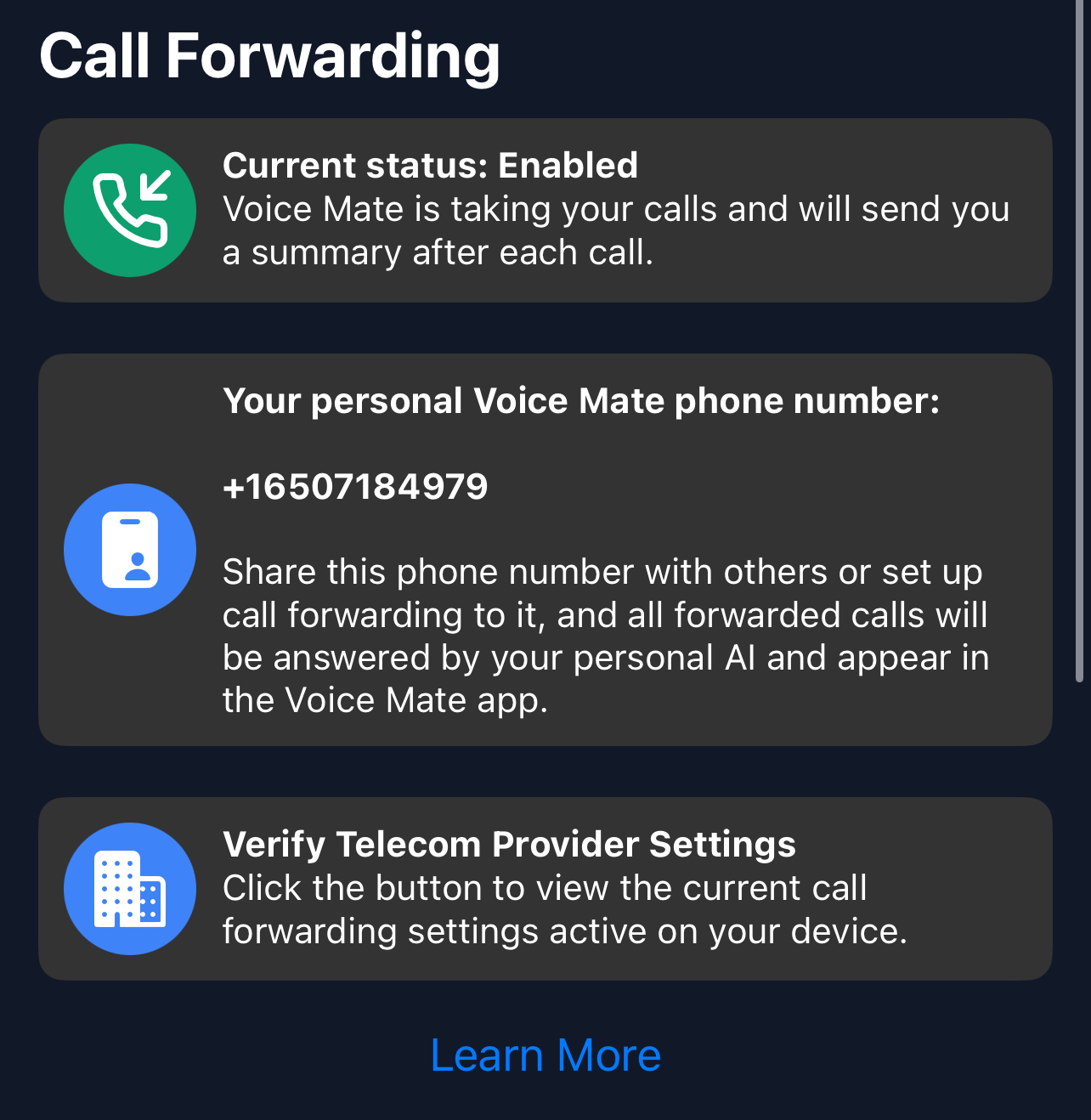
Simply enable call forwarding straight from the Voice Mate app. This is done by tapping the red icon to toggle forwarding on and off. The app will prompt you to call a special phone number that tells your telecom provider that Voice Mate should Handle your Voice Mail
-
3. [optional] Set up Integrations (With Slack, Hubspot, Zapier or Google Calendar)
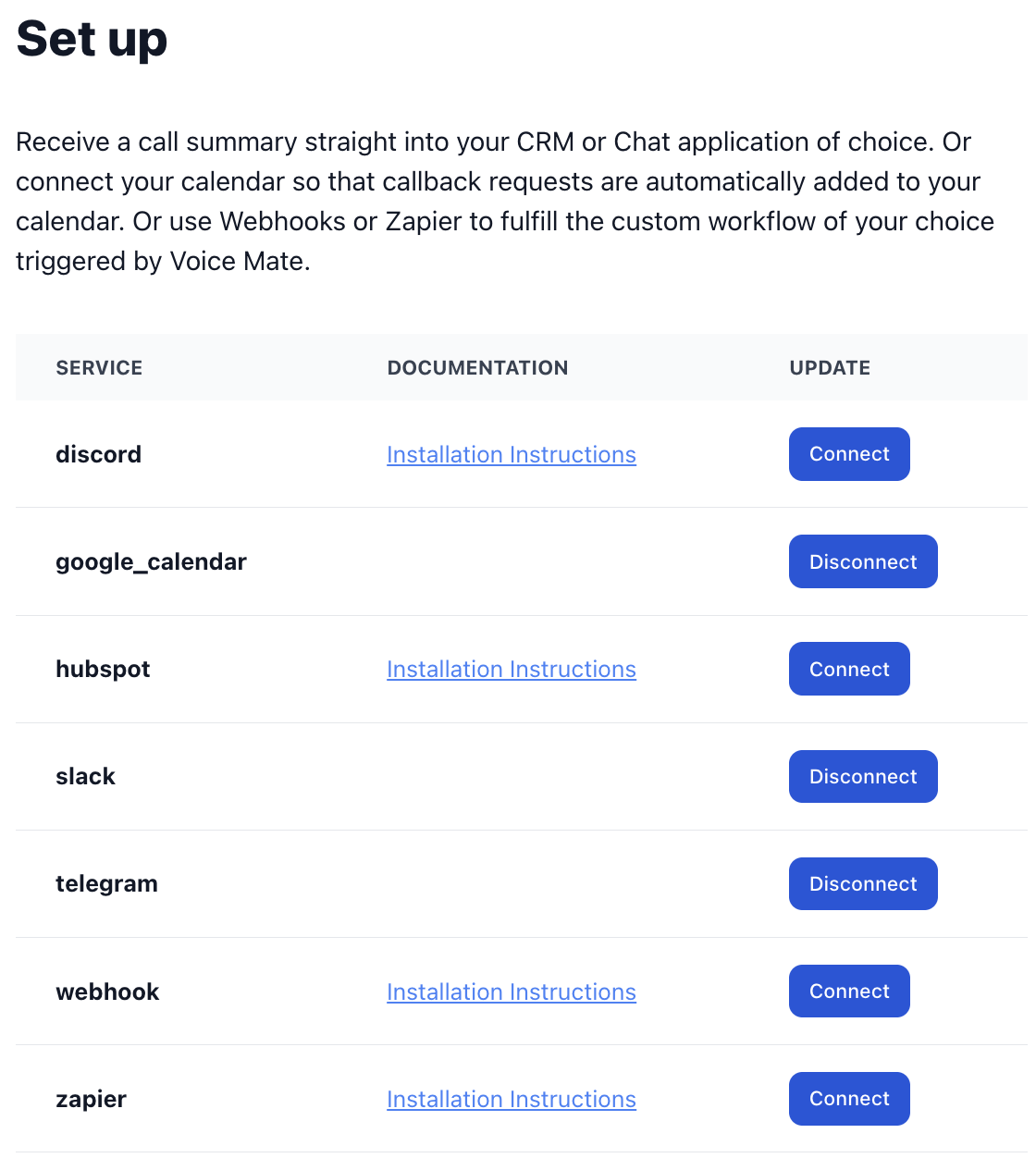
Voice Mate offers integrations with Slack, Hubspot, Zapier, and Google Calendar. This way you receive a notification when a call is recorded. This allows you to share your inbound calls with a team and even automatically schedule callbacks in google calendar. For real estate it it very useful to post inbound calls to slack, this allows the backoffice to already jump on a lead and confirm a viewing without you even noticing.
-
4. Start Receiving Calls
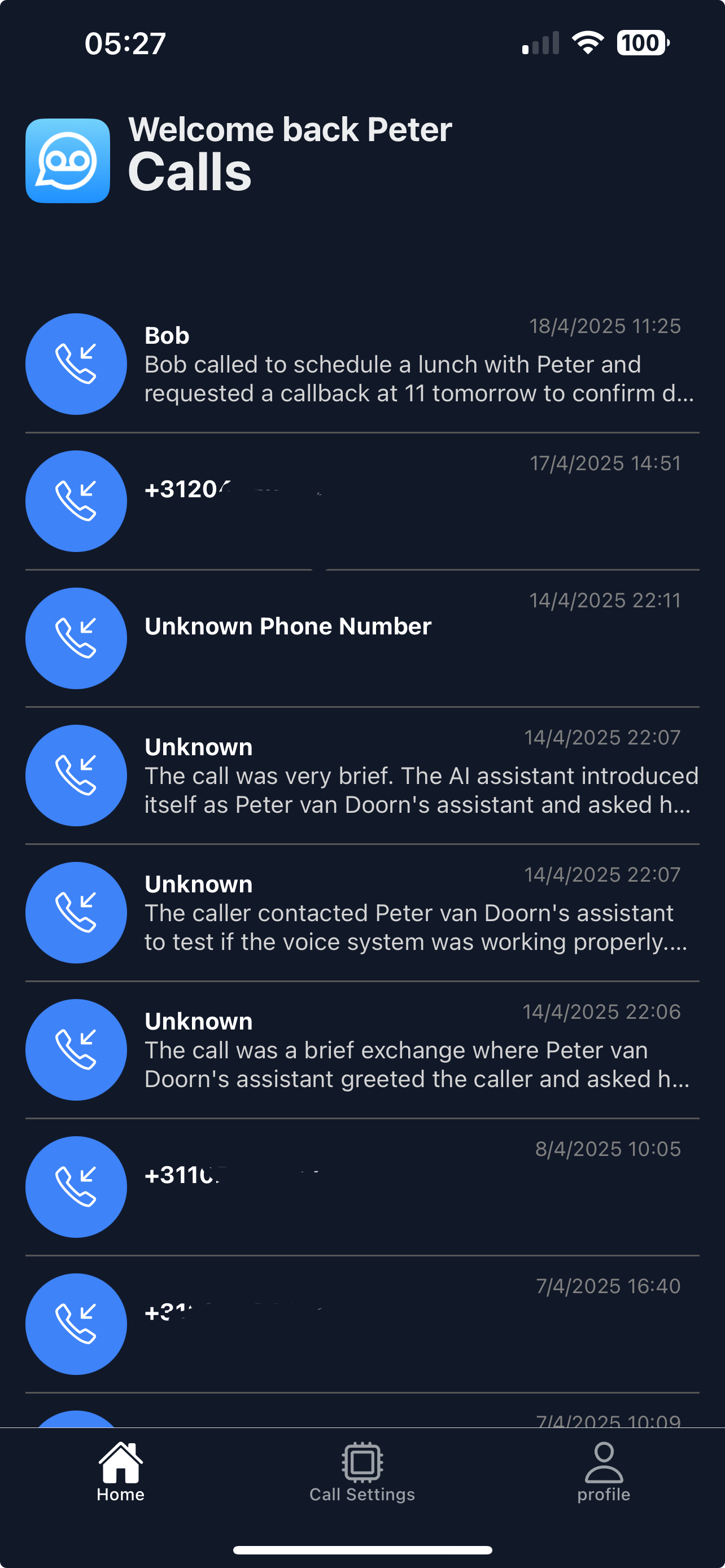
Once set up Voice Mate will start answering calls on your behalf. You'll receive a push notification and the calls themself will be listed in your app
-
5. Listen back to Inbound Calls and read the transcripts
Access Voice Mate reports to see call summary, transcripts, and listen back to the recording.