 Voice Mate Documentation
Integrate with Zapier
Integrate Voice Mate with Zapier Webhooks to automate actions whenever a call is received in Voice Mate.
Set up Voice Mate in Zapier
Getting Started
You'll need a Zapier account to connect Voice Mate with other apps.
-
Use Voice Mate as a Trigger:
When a caller requests a callback, Voice Mate can trigger an event in Zapier. This allows you to automate follow-ups, log calls, or notify your team instantly.Start by creating a new zap
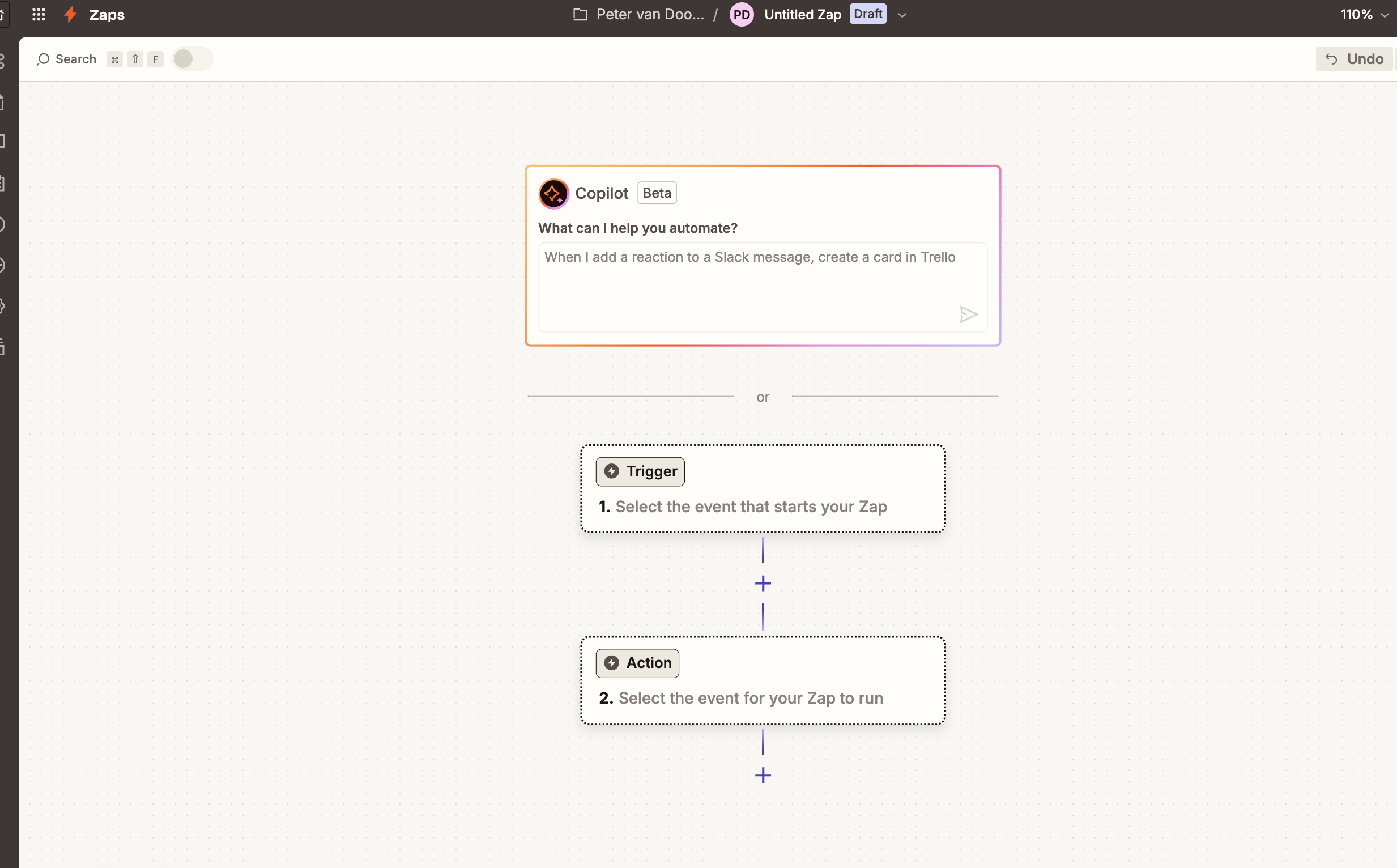 2. Zapier Webhook:
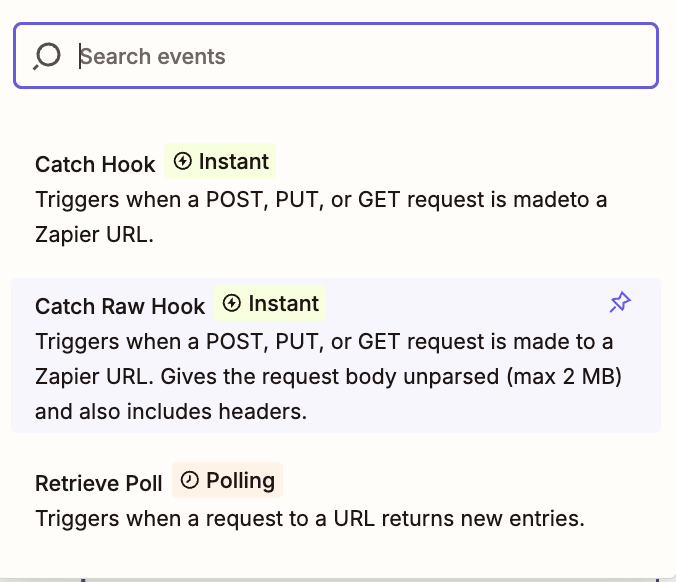
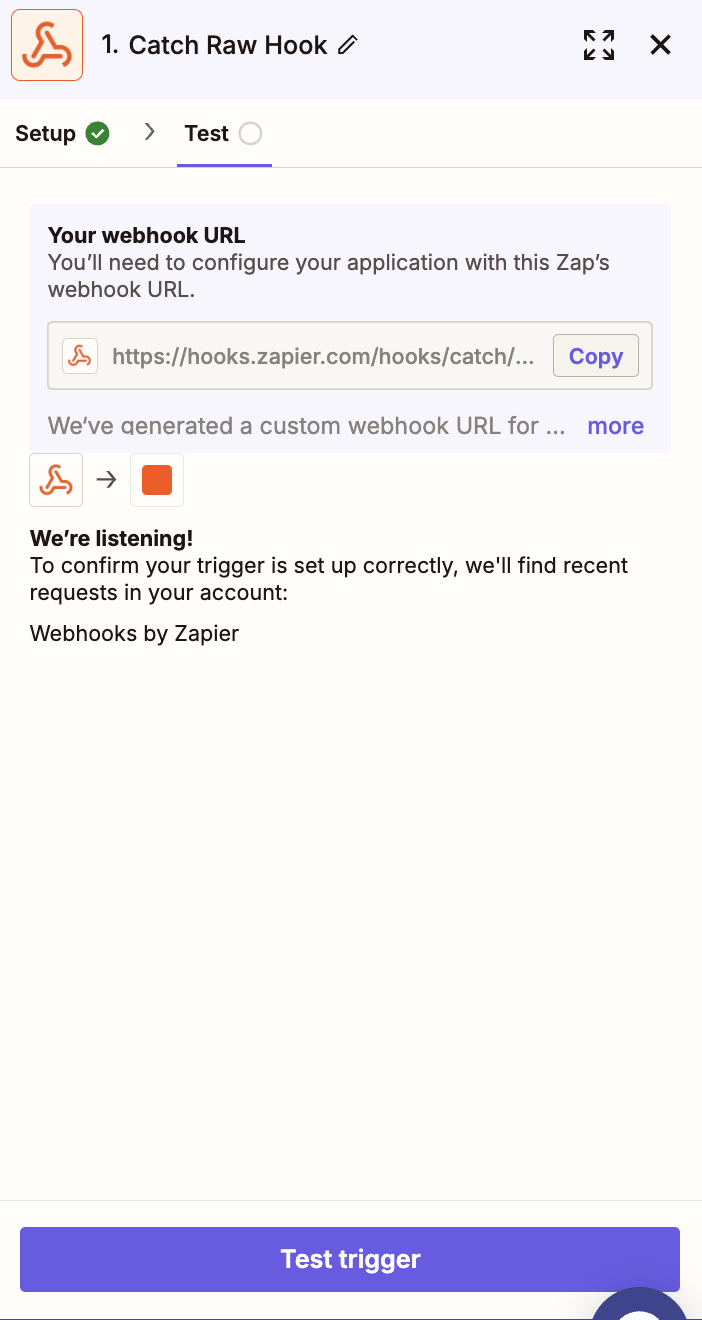
For trigger choose the Zapier Webhook option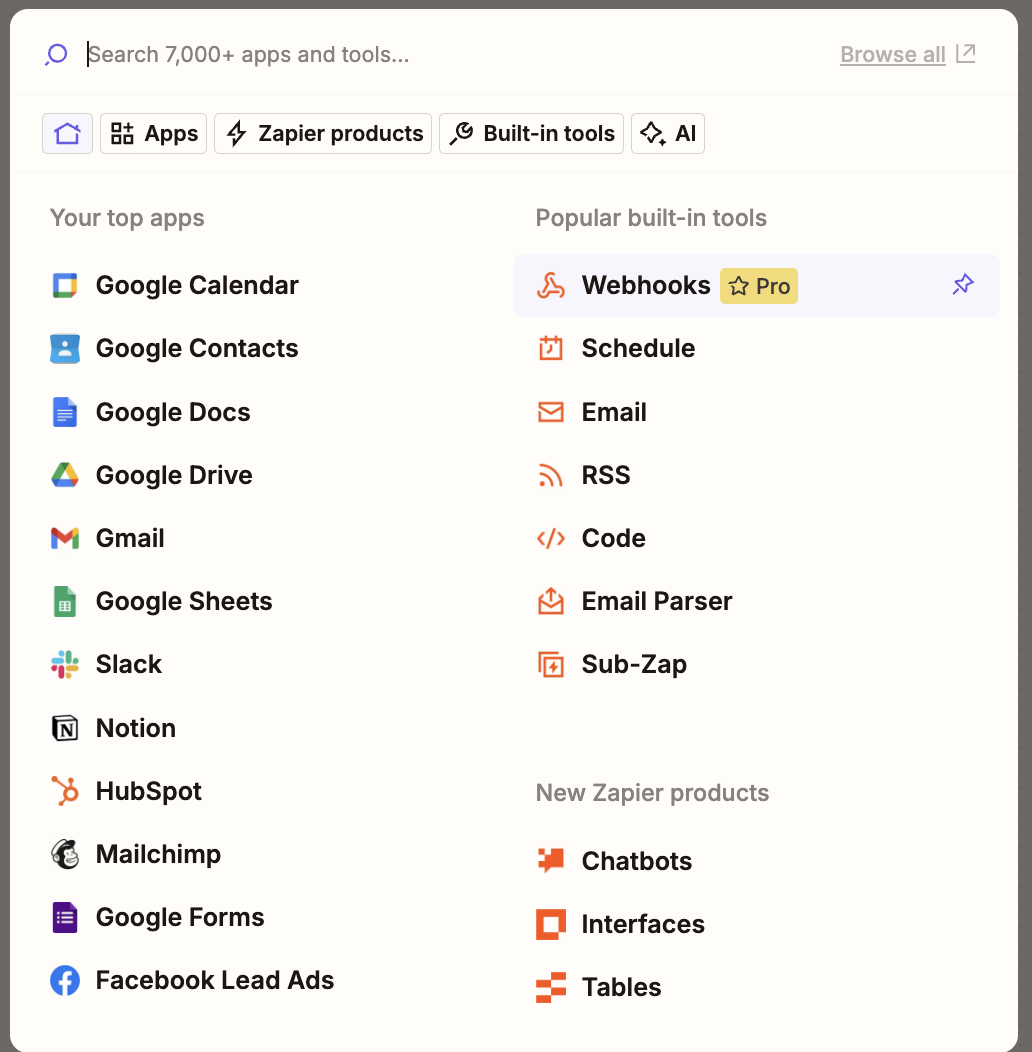 Select to Catch Raw Hook. This allows zapier to read the data we will send along
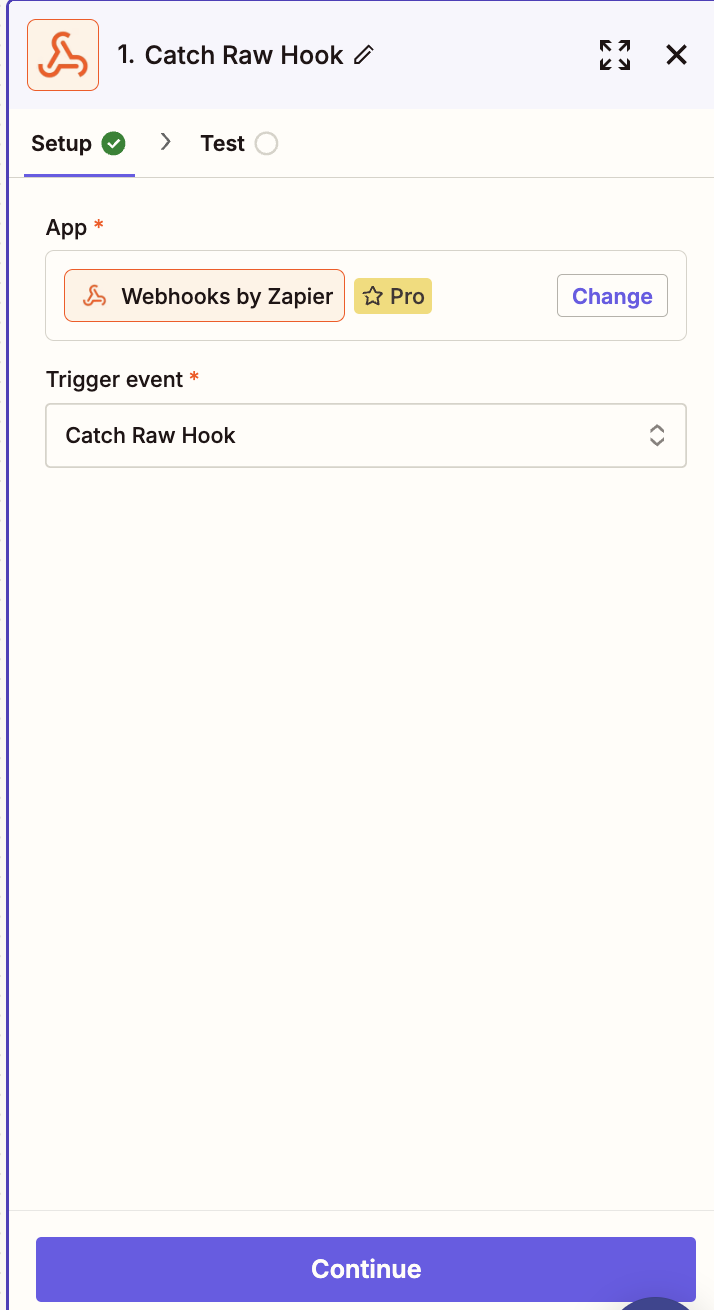
 Tap Continue
 Copy the webhook URL onto your clipboard and paste it into the webhook URL field on Voice Mate
-
Automate Your Workflow:
Once Voice Mate sends the event, you can connect it to any Zapier-supported app. For example:-
Create a task in Trello or ClickUp
-
Send a notification in Slack
-
Log the callback request in Google Sheets
-
Forward details via email or SMS
-
-
Callback Event Data:
The webhook payload contains key details about the call, including:-
Caller name (if available)
-
Phone number
-
Requested callback time
-
A summary of the call
-
A link to the voicemail recording
-
Support
For help, contact our support team or check the FAQ.
This keeps it Zapier-focused without Google Calendar. Let me know if you want adjustments! 🚀